Welcome to the TScore website!
Looking for live results? Click here for BSGA events or Click here for other events
TScore is a computer program that helps you organise and run Trampoline, Synchro, DMT, Tumbling, Acro, Pole Sports and Artistic Gymnastics competitions.

It handles competition setup, entry processing, timetabling, scoring and results processing.
TScore is highly intuitive and very forgiving – complete novice computer recorders can learn it in a few minutes. It is also we believe, the most feature rich product of its type on the market and is incredibly good value for money!
Although simple to use, TScore is very sophisticated. It can handle the latest BG, BSGA, IGA, FIG and USAG rules and offers customisable results lists and personalised certificates.
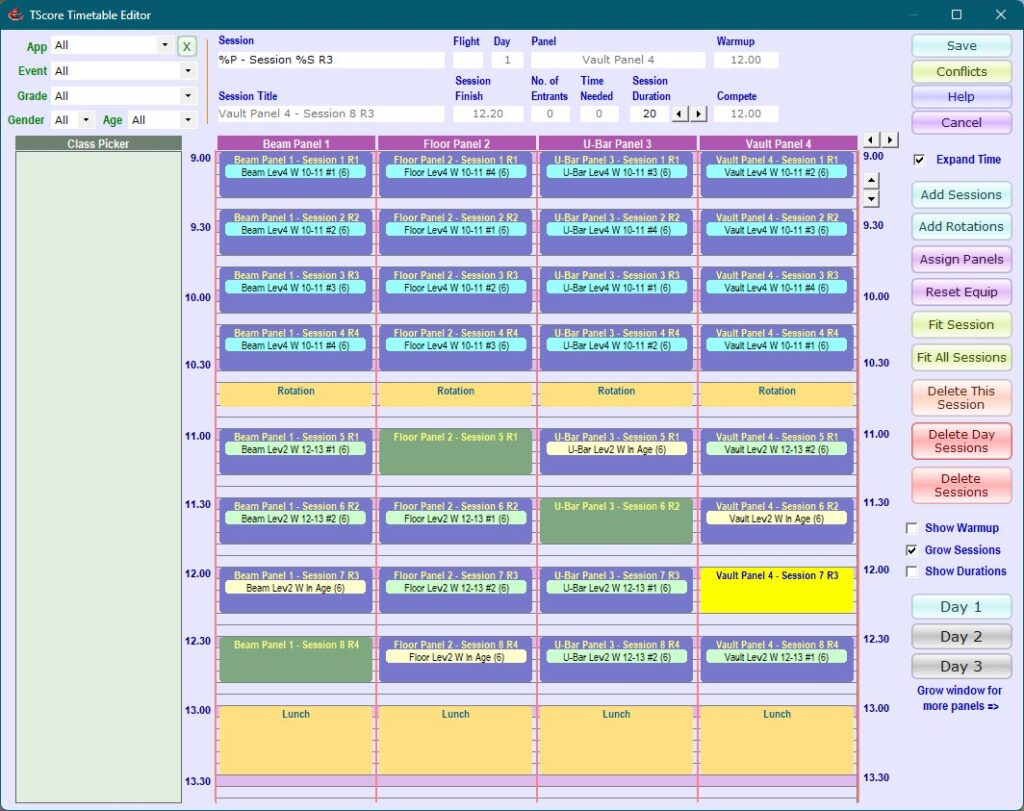
Since TScore is developed by a UK trampoline coach, and used at our regional comps, updates will be available whenever the BG rules change. It also includes specific adaptations for BSGA (Schools) competitions, with the ability to separate team and individual entrants running within the same classes. Automatic emailing of entrants makes handling communications with over 250 schools so much easier!
We have supported USAG-JO/DP meets for over 10 years, and can apply any of the allowed combinations of judge numbers within the code of points. TScore can support a range of non-English character sets for some of its functions. Support has continued through to the latest 2025 USAG-DP rules, with simple handling of the multiple scoring options for averages and medians.

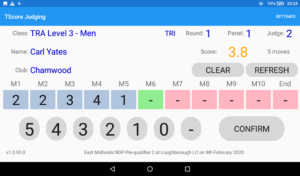
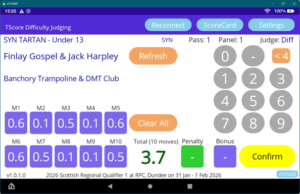
TScore includes Time of Flight and Horizontal Displacement of course, but we also have the ability for each execution or HD judge to enter move-by-move deductions using Android tablets, and generating rosters for time of flight systems. This is proving to be a popular feature and has been used at numerous events now for TRA, DMT and TUM disciplines. In December 2025 we released a full integration with the Eurotramp QIRA automatic time of flight and HD system. Following rapidly on from that, in February 2026 we put out a beta release of the Difficulty Judge’s App, for skill-by-skill tariff entry, plus bonus and penalty scores.
 |
 |
TScore also offers Artistic Gymnastics scoring, including multi-piece events, static competitor numbers and individual score tickets. Trampoline, DMT, Tumbling, Acro and events have been run extensively in multiple jurisdictions. The Artistic Gymnastics and Pole Sports disciplines have been used successfully at national / international events and are continually being adapted to suit the wide range of competition formats used by different clubs, regions and countries.

Heading into 2026, TScore goes from strength to strength, with more competitions running tablet scoring for TRA, DMT and TUM (with optional median move deductions), including HD tablet capability for trampoline. Live Web publishing is evolving rapidly with better formatting and more stylesheet control for you to configure your own presentation.
TScore Version 11.1 is available now. This has the new timetable editor that supports flight size adjustments with split/join, scheduled breaks, and automatic creation of gymnastics apparatus rotations over multiple panels, plus the recently added QIRA integration. Version 11.2 is now undergoing beta testing – this adds the Difficulty scoring app capability.
Contact
Please email us on support@tscore.co.uk
We aim to respond within 24 hours (frequently more like 24 minutes!) Customers can also use the TScore Users Group on Facebook.
Customers also have access to 24/7 emergency licenses just in case your PC explodes during an event! Please check your welcome email for details.